
The short version
- This free audio visualizer turns a song into a video in your browser. Drop in an MP3 or WAV, add cover art and a title, pick a style, press Export.
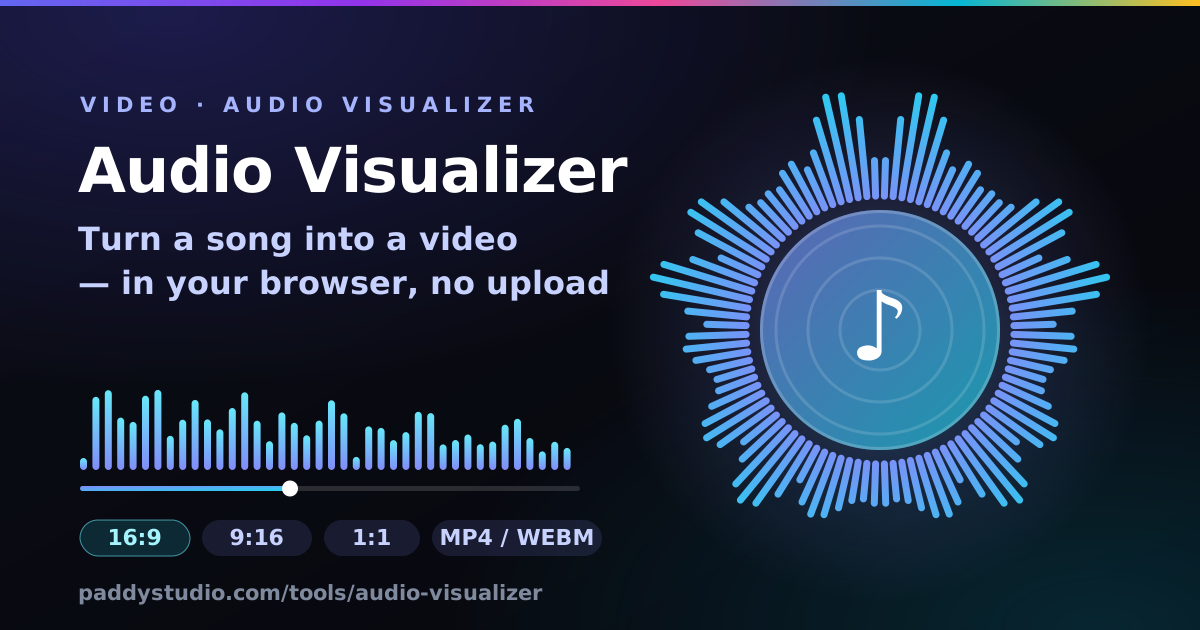
- Six styles: classic bars, mirrored bars, a circular spectrum around your cover, an oscilloscope waveform, a spinning vinyl record and bass-reactive particles.
- Three shapes: 16:9 for YouTube, 9:16 for TikTok, Reels and Shorts, and 1:1 square, in 720p or 1080p.
- You get an MP4 in Safari and recent Chrome or Edge, and a WebM in Firefox. The tool tells you which before you start.
- Export runs in real time. A 3-minute song takes about 3 minutes, so keep the tab visible.
- Your song never leaves your device. No upload, no account, no watermark.
How do I turn a song into a video?
Load the song, dress it up, export it. Here’s the whole thing:
- Drop your song onto the box or press “Choose a song”. No song handy? Press “Try the demo loop”.
- Add your cover art (optional) and type the song title and artist. Without a cover you get a tidy gradient with a note on it.
- Pick a style and a shape. 16:9 for YouTube, 9:16 for TikTok, Reels and Shorts, 1:1 for a square post. Press Play to watch it react.
- Choose the clip. Full song for YouTube, or press 15 s, 30 s or 60 s to grab a social clip starting at the playhead. Fine-tune the start and end if you like.
- Press “Export video” and let it play through. When it finishes, press Download. The file is named after your song, the style and the size.
Pick the chorus for social clips. Scrub to just before the hook, press 15 s or 30 s, and the clip starts right there. Leave “Fade clip in and out” on and it won’t start or stop mid-word like a radio being kicked.
Which visualizer style should I pick?
Circular for album-art-forward videos, bars for the classic look, vinyl for chilled tracks. All six react to the music and pulse the cover on the bass.
| Style | Looks like | Best for |
|---|---|---|
| Bars | A classic spectrum analyser under your cover | Any genre; the safe choice for YouTube |
| Mirrored | Bars growing up and down from the centre, bass in the middle | EDM, hip-hop, anything with a big low end |
| Circular | A ring of spectrum spikes around a round cover | Showing off your cover art; vertical clips |
| Waveform | A glowing oscilloscope line | Ambient, acoustic and spoken word |
| Vinyl | Your cover as the label of a spinning record | Lo-fi, chill, jazz, slowed + reverb versions |
| Particles | Sparks bursting off the cover on every kick | Dance and pop; short hooks for TikTok |
What is the best video size for each platform?
Use 16:9 at 1920 × 1080 for YouTube, and 9:16 at 1080 × 1920 for TikTok, Reels and Shorts. Here’s the fuller list. These are the platforms’ published specs as of October 2026; they change them now and then, so check their help pages before a big release.
| Where | Shape | Size | Notes |
|---|---|---|---|
| YouTube video | 16:9 | 1920×1080 | MP4 or WebM both upload fine. 1080p is plenty for a visualizer. |
| YouTube Shorts | 9:16 | 1080×1920 | Vertical or square, up to 3 minutes. A Short over 1 minute with a copyright claim is blocked worldwide until the claim is sorted, so only use music you have the rights to. |
| TikTok | 9:16 | 1080×1920 | MP4 is the safest file. Keep the title clear of the bottom fifth, where the caption sits. |
| Instagram Reels | 9:16 | 1080×1920 | MP4 or MOV, not WebM. Captions and buttons cover the bottom and right edge, and the profile grid crops the thumbnail to 3:4. |
| Instagram feed post | 1:1, 4:5 or 3:4 | 1080×1080 | This tool makes 1:1. The profile grid shows posts cropped to 3:4, so keep things central. |
| X (Twitter) | 16:9 or 1:1 | 1920×1080 | MP4 or MOV (H.264 + AAC), not WebM. Free accounts are limited to 2 minutes 20 seconds and 512 MB. |
| Spotify Canvas | 9:16 | 1080×1920 | A silent 3–8 second loop, 720–1080 px tall, MP4 only. Spotify suggests leaving out the song and artist name (the app already shows them), so turn the title off. |
Will I get an MP4 or a WebM?
It depends on your browser: Safari and recent Chrome and Edge make MP4, Firefox makes WebM. The tool asks the browser what it can record and picks MP4 (H.264 video, AAC audio) whenever it’s available, because every platform accepts it. The line above the Export button tells you which you’ll get.
| Browser | File you get | Good to know |
|---|---|---|
| Safari (Mac, iPhone, iPad) | MP4 | H.264 + AAC. Every iPhone and iPad browser uses Safari’s engine, so they all make MP4. |
| Chrome and Edge (recent) | MP4 | H.264 + AAC on recent versions. Older versions make WebM. |
| Firefox | WebM | VP8 or VP9 video with Opus audio. Fine for YouTube; convert it for Instagram and X. |
| Very old browsers | None | Without MediaRecorder you can preview but not record. The tool will say so. |
Got a WebM and need it on Instagram or X? Neither takes WebM. Either export again in Safari or a recent Chrome or Edge, which make MP4, or convert it with a free converter such as HandBrake. YouTube is happy with WebM as it is.
Why does exporting take as long as the song?
Because your browser records the visualizer live. The song really plays, the canvas really reacts, and the browser’s built-in recorder captures both, a bit like filming a screen. That’s what keeps it free and private: no server is rendering your video, your own computer is. The catch is that browsers pause animation in hidden tabs, so keep the tab in front until it’s done. If you switch away, the tool warns you, and the music carries on while the picture may freeze.
Can I make a Spotify Canvas with it?
Yes: choose 9:16, press the 8 s clip, and turn off the title, progress bar and time. Spotify’s guidelines ask for 3 to 8 seconds, 720 to 1080 px tall, and suggest leaving out the song and artist name because the app shows them right underneath. Canvas loops are silent, so the music doesn’t matter to Spotify, but it still drives the motion. Vinyl and Particles loop most gracefully. Spotify wants MP4 for Canvas, so use Safari or a recent Chrome or Edge, then upload it in Spotify for Artists.
Why I built this
I’m a guitarist: a Cort, a lot of enthusiasm, roughly twelve notes. These days most of my songs start life in Suno, and I learned the hard way that a song without a video on YouTube is a radio in a cupboard. Technically it’s playing. Nobody’s hearing it.
The visualizer makers I found wanted an upload, an account, a credit card or a big watermark in the corner, and some of them rendered on a server queue that took longer than writing the song. Your browser can already analyse audio and record a canvas, so this does the lot on your own device. I added the vinyl style because every lo-fi song deserves to pretend it’s on a record player in a café with plants.
Visualizer or a proper music video?
A visualizer is the quick win; a full music video is the big release. For most of my Suno songs I post a visualizer the same day: it costs nothing and gives the track something to look at on YouTube. For the songs I really believe in, I make a proper video with Vidmuse, which turns the song into scenes that follow the lyrics. Here’s how I do that: make an AI music video with Suno and Vidmuse.
Need the cover art and release graphics to go with it? The promo card maker makes “Out Friday” and “Out now” images from your artwork. And if you haven’t written the song yet, the free Prompt Studio builds your Suno style prompt and a Vidmuse video script in one go.
Is my song uploaded anywhere?
No. Your song and cover never leave your device. The audio is decoded by your browser’s Web Audio API, analysed live with an AnalyserNode, drawn on a canvas and recorded with the browser’s MediaRecorder. The video file is created on your device and handed straight to you. The page remembers your settings (style, shape, colours and artist name) in your browser’s local storage so they’re there next time, but never your files. Close the tab and they’re gone.
A visualizer doesn’t change who owns the song. You can make a video for any track, but posting one of a commercial song can get it claimed, muted or taken down. It’s safest with your own music, your own Suno songs on a plan that gives you commercial rights (check your plan), or tracks you have a licence for. This isn’t legal advice, but it is good advice.
Audio visualizer FAQ
Is this audio visualizer really free, with no watermark?
Yes. It is free, there is no watermark, no account and no limit on exports. The only words in your video are the title and artist you type, and you can turn those off too.
Does it upload my song?
No. Your song and cover image are read by your browser and the video is recorded on your device. Nothing is uploaded. The page remembers your settings, never your files.
Will I get an MP4 or a WebM?
It depends on your browser. Safari and recent versions of Chrome and Edge record MP4 with H.264 video and AAC audio. Firefox and older Chrome record WebM with VP9 or VP8 video and Opus audio. The tool shows which one you will get before you press Export.
How do I upload a WebM to Instagram or X?
You need an MP4, because Instagram and X do not accept WebM. Either export again in Safari or a recent Chrome or Edge, which record MP4, or convert the WebM to MP4 with a free converter such as HandBrake. YouTube accepts WebM as it is.
Can I use the video on YouTube?
Yes. Choose 16:9 at 1080p for a normal video or 9:16 for Shorts. YouTube accepts both MP4 and WebM. Only upload songs you have the rights to.
Why does the export take as long as the song?
Because the browser records the visualizer live, like filming a screen: the song plays in real time while the canvas is captured. A 3-minute song takes about 3 minutes. Keep the tab visible while it records, because browsers pause animation in hidden tabs.
Which size should I choose for TikTok, Reels and Shorts?
Choose 9:16 vertical at 1080 × 1920. Use 16:9 at 1920 × 1080 for normal YouTube videos and 1:1 at 1080 × 1080 for square feed posts.
What audio files can I use?
MP3 and WAV work in every browser, and M4A, AAC and OGG work in most. The audio in the video is encoded at 192 kbps, which is fine for social media, but keep your original file as the master.
Can I make a visualizer for someone else’s song?
You can make one, but posting it is another matter. The song still belongs to whoever owns it, so a video of a commercial track can be claimed, muted or removed. Use your own music, your own Suno songs on a plan that gives you commercial rights, or tracks you have a licence for.
Does it work on a phone?
Yes, in modern mobile browsers. On iPhone and iPad every browser uses Safari’s engine and records MP4. Keep the screen on and this tab open while it exports, and choose 720p if your phone struggles.
Make the song first, then make it a video
The free Paddy Prompt Studio builds Suno style prompts and Vidmuse video scripts. Pick a genre, mood and vocal and it writes the style line for you.
Open the Prompt Studio →