
The short version
- This is a free music editing tool that runs in your browser. Open an MP3, WAV, M4A, FLAC or OGG, edit it, download a WAV. No account, no watermark, no “upgrade to export”.
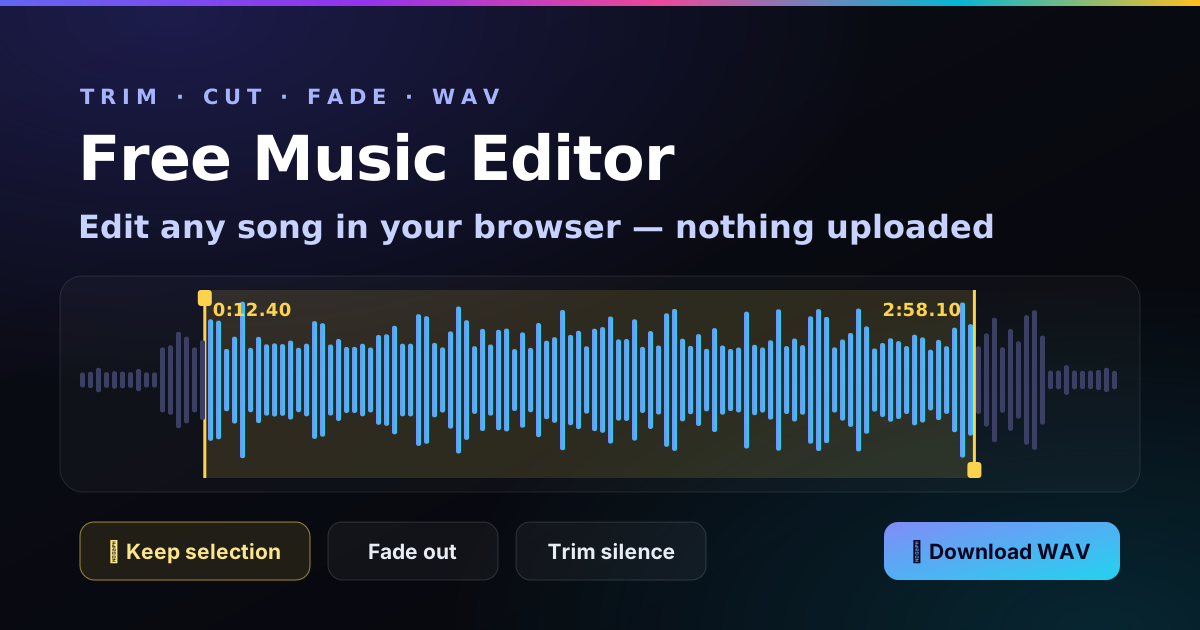
- To trim a song: drag across the bit you want, press Keep selection, press Download WAV. That’s it. Three clicks.
- To cut a section out: select it and press Delete selection. The two sides join with a tiny smoothing so there’s no click.
- To fade: pick a length (3–8 seconds suits most song endings) and press Fade out.
- Nothing is uploaded. The file is decoded and edited on your own device and the original is never touched.
- For Suno tracks: trim the wandering intro, cut the extra chorus, fade the ending, then check the loudness in the LUFS meter before release.
How to trim, cut and fade a song online
- Open your song. Press Choose an audio file, or just drag it onto the page. No file handy? The demo loop has a second of silence at the front and an ending so rude it practically begs for a fade.
- Select the part you care about. Drag across the waveform. The selection turns yellow; grab its edges to adjust. Press Space to hear just that bit. If you need to be exact, type the start and end times (
0:12.5or12.5both work). - Trim or cut. Keep selection throws away everything outside the yellow. Delete selection removes the yellow and stitches the rest together.
- Fade and tidy. Fade in and Fade out work on the ends of the song (or across a selection). Trim silence removes dead air. Normalise brings the peak up to −1 dBFS.
- Download. Choose 16-bit or 24-bit WAV and press Download WAV. Changed your mind? Ctrl+Z works like you’d hope.
Finding the perfect cut point by ear: press play, then hit I the moment the bit you want starts and O when it ends. Tick Loop selection and listen to the join a few times. If it bumps, nudge an edge a hair and listen again. Cutting on a kick drum hides almost everything.
What each button actually does
| Button | What happens | Use it for |
|---|---|---|
| Keep selection | Deletes everything before and after the selection | Ringtones, clips, cutting a song down to one section |
| Delete selection | Removes the selection and joins the two sides with a 3 ms smoothing | Cutting a repeated chorus, a cough, a bad take |
| Silence it | Replaces the selection with silence, keeping the timing | Muting a click or a word without shifting the rest |
| Reverse it | Plays the selection backwards | Reverse cymbal swells, spooky intros, pure mischief |
| Fade in / out | An equal-power volume ramp over the chosen length or the selection | Smooth endings, removing a click at the start |
| Normalise | Turns the file (or selection) up or down so the loudest peak sits at −1 dBFS | A quiet recording; making two clips match in peak level |
| −3 dB / +3 dB | Changes volume; the “louder” button stops before it would clip | Small level tweaks without guessing |
| Trim silence | Removes audio quieter than −50 dBFS from both ends | Dead air before the first note or after the last |
| Make mono | Averages left and right into one channel | Voice notes, podcasts, phone speakers |
Editing a Suno track before you release it
I love Suno, but it does have habits. Songs that open with eight seconds of the AI clearing its throat. A fourth chorus that nobody, including the AI, wanted. An ending that just… stops, like someone tripped over the plug. This editor exists mostly because of those three things.
- Long or messy intro? Select from where the song really starts to the end and press Keep selection. Then a 0.5 s Fade in removes any click.
- A section too many? Select it from the start of the extra section to the start of the next one, then Delete selection. Cut on the downbeat and the join is usually invisible. The BPM finder tells you how long a bar is if you want to be precise.
- Abrupt ending? Choose 5 or 8 seconds and press Fade out. Or select the last few bars and fade across just those.
- Then check loudness. Drop the exported WAV into the LUFS meter. Suno exports are usually loud already, so don’t pile Normalise on top unless the meter says it’s quiet.
The full release checklist is in how to prepare a Suno track for release, and if the cut is for a music video, making an AI music video with Suno and Vidmuse picks up from here.
How long should a fade be?
- Song endings: 3 to 8 seconds. Radio-style pop fades are often longer; a ballad can take 10.
- Clips, ringtones, Reels and Shorts: 0.5 to 2 seconds, so the clip ends cleanly without wasting precious seconds.
- Fade-ins: usually under a second, just enough to stop a click. A slow fade-in is an effect, so use it on purpose.
- Loops: no fade at all. Cut on the beat instead, then loop the selection here to check it repeats cleanly.
Normalise vs loudness: not the same thing
Normalising sets the loudest peak, not how loud a song sounds. A spiky acoustic track and a squashed EDM banger can both peak at −1 dBFS and still sound miles apart. Spotify, Apple Music and YouTube balance songs by loudness in LUFS instead. So use Normalise for a quiet voice memo or a clip that needs to match another, and use the LUFS meter when you’re asking “is this ready for Spotify?”
This editor vs Audacity vs a DAW
| Paddy Music Editor | Audacity | Free DAW (GarageBand, Waveform Free) | |
|---|---|---|---|
| Install | None, it’s a web page | Desktop app | Desktop app |
| Best for | Trim, cut, fade, normalise in a minute | Deep audio editing, noise reduction, effects | Recording and arranging whole songs |
| Tracks | One file at a time | Multitrack | Multitrack plus instruments and MIDI |
| Learning curve | About thirty seconds | An afternoon | A few weekends |
| Your file | Never leaves your device | Stays on your computer | Stays on your computer |
If you’re outgrowing this and want the full kit, I’ve compared the best free music production programs, from Audacity to GarageBand to Waveform Free, with honest notes on what each one is actually like to use.
Why I built this
I’m a self-taught guitarist, not an engineer. The first time I wanted to shave twelve seconds off a song, the internet offered me a 300 MB download, an “online” cutter that wanted my email and slapped a watermark on the result, and a forum thread from 2011 that ended with “nvm figured it out”. Thanks, mate.
All I wanted was: open song, cut bit, fade end, save. So that’s what this does, with the buttons in the order you’ll use them. It won’t remove vocals or master your album, and it’s honest about that. It will save you twenty minutes and a mild existential crisis.
How it works, and what it does with your audio
Your browser reads the file and decodes it with the Web Audio API into plain sample data, at your device’s audio sample rate (usually 44.1 or 48 kHz). Every edit is simple arithmetic on those samples: slicing for trims and cuts, a sine-shaped gain curve for fades, multiplication for volume and normalising. The waveform is drawn from the minimum and maximum of each screen column. When you download, the samples are written into a standard PCM WAV file; 16-bit files get a whisper of dither so very quiet fades stay smooth instead of grainy.
Nothing is uploaded, stored or sent anywhere. There is no account and no server involved. The only thing saved is your chosen fade length and WAV format, in your browser’s local storage. Undo history is kept in memory and thrown away when you close the tab, and the page will warn you before closing if you have edits you haven’t downloaded.
Very long files (an hour-long podcast, say) use a lot of memory because they’re edited uncompressed, and undo keeps fewer steps for them. For songs and clips this never matters. And as always: only edit and share music you have the right to use.
Music editor FAQ
What is the best free music editing tool?
For quick jobs like trimming, cutting, fading and normalising, a browser editor like this one is fastest: nothing to install, no account, and the file stays on your device. For multitrack editing, noise reduction and effects, Audacity is the best free desktop audio editor. For arranging whole songs, a free DAW such as GarageBand or Waveform Free.
How do I trim a song online for free?
Open the song here, drag across the part you want to keep, press Keep selection, then Download WAV. Type exact start and end times if you need precision.
Is my audio uploaded anywhere?
No. Your browser decodes the file and every edit happens in JavaScript on your device. Nothing is uploaded, stored or sent, and closing the tab discards the audio.
Can I save as MP3?
The editor saves WAV, which is lossless and is what distributors such as DistroKid prefer. It opens MP3 but doesn’t save it, because re-encoding an MP3 loses a little quality every time. If you need an MP3 for sharing, convert the WAV once, at the very end.
How long should a fade out be?
For most songs, 3 to 8 seconds feels natural. Short clips, ringtones and social videos suit 0.5 to 2 seconds. A fade-in at the very start is usually under a second, just to remove a click.
What does normalise do?
It turns the whole file (or the selection) up or down so its loudest sample peaks at −1 dBFS. It changes volume only, not the sound, and it isn’t the same as Spotify’s loudness normalisation, which uses LUFS. Check that with the LUFS meter.
Can I edit a Suno song with this?
Yes. Download the WAV or MP3 from Suno, open it here, trim the intro or the extra chorus, fade the ending, and download a clean WAV for release or for a Vidmuse video. Check your Suno plan’s terms for what you’re allowed to do with the track; can you sell Suno songs? covers that.
Does it work on a phone?
Yes. Tap Choose an audio file to pick a song from your files, then drag on the waveform with a finger. For fine edits, type the start and end times instead; fingers are not precision instruments, as my guitar playing proves.
Trimmed it? Check it’s ready for Spotify.
The free LUFS meter tells you how loud your edit is and how much Spotify, Apple Music and YouTube will turn it up or down. Same rules: nothing uploaded.
Open the LUFS meter →