
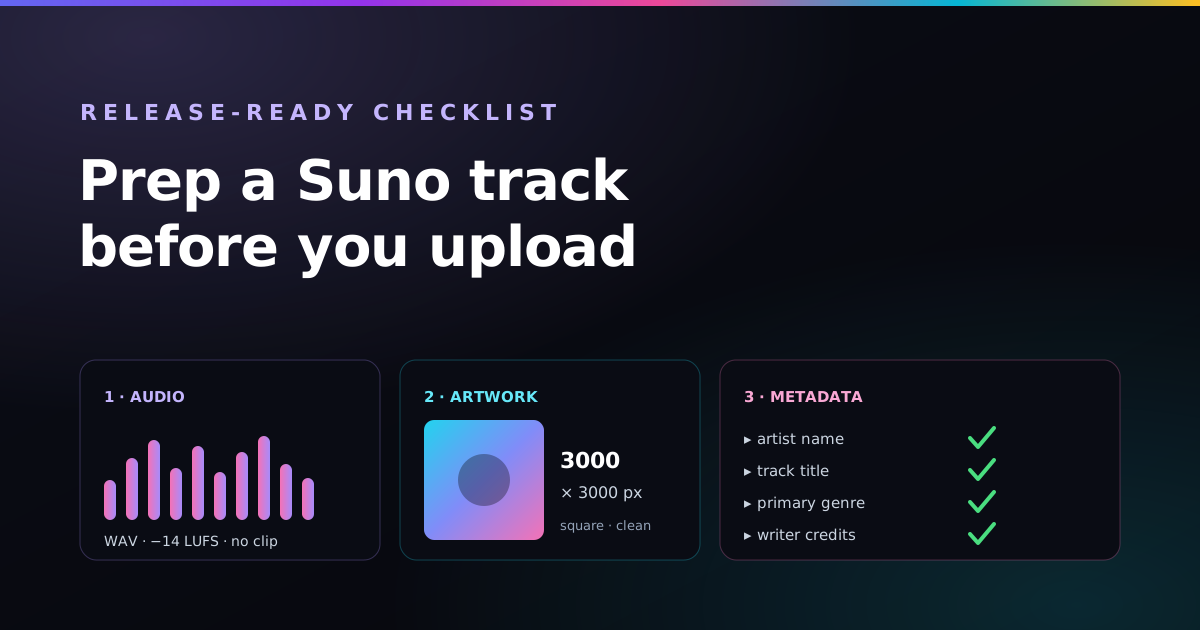
To prepare a Suno track for release, download the highest-quality WAV from a paid Suno plan, trim the edges, master to around −14 LUFS without clipping, make 3000×3000 px square cover art with no logos or URLs, and lock a consistent artist name, title, genre and real-name credits. Then upload to DistroKid. No studio needed. I certainly don’t have one.
The upload is the easy bit: you give a distributor a file and it sends it to Spotify, Apple Music and the rest. What makes a release hold its own is what you do before that. Ten minutes on the audio, ten on the artwork and five on the metadata, and your Suno song turns up on Spotify looking like it meant to be there.
The release-ready checklist (fits on a coaster)
- Audio: highest-quality WAV, trimmed, loudness around −14 LUFS, no clipping
- Artwork: 3000×3000 px square, no logos or URLs, rights cleared
- Metadata: consistent artist name, clean title, primary genre, real-name credits
- Rights: generated on a paid Suno plan so it's yours to release
1. Get the audio release-ready
Start from the best file. In Suno, download the highest-quality WAV your plan offers rather than a compressed MP3 — that gives every platform the cleanest source to encode from. Then run three quick checks:
- Trim the edges. Cut any dead silence or an abrupt cut at the very start or end so the track opens and closes cleanly. The free online music editor does this in a minute: Trim silence, then a 3–8 second Fade out, then download the WAV.
- Check the loudness. Streaming platforms normalize to roughly −14 LUFS. Getting your track into that neighbourhood means it won't sound noticeably quieter than the songs around it in a playlist. A simple loudness/mastering pass — even a free tool — is enough.
- Watch for clipping. If the loudest moments are distorting, pull the level down a touch and leave a little headroom. Distortion is the giveaway of an unfinished track.
Don't over-process it. The goal is “sits comfortably next to commercial songs,” not “remastered to death.” If you're not sure where your track lands, the free LUFS meter will tell you in a few seconds.
2. Create the cover art
Every release needs a single square image, and stores are strict about it:
- Size: at least 3000×3000 pixels, square, high resolution.
- Keep it clean: no streaming-platform logos, no web addresses or social handles, and no misleading text. These are common rejection reasons.
- Clear the rights: use art you own or generated yourself. If you make the cover with an AI image tool, the same originality care applies as with the music — make sure nothing in it could trigger a takedown.
The cover is the first thing a listener sees in a playlist or on your artist page, so don't knock it up in the last five minutes. A strong, simple image does more for a release than a busy one. (My first attempt had a wombat, three fonts and a sunset. It did not need the sunset.)
3. Lock your metadata
Metadata is how stores understand, group and pay for your music — get it consistent and it quietly works in your favour for years. Decide these before you upload:
- Artist name. The single name your entire catalog lives under. Pick it carefully; changing it later is painful and can split your release history. Search it first to make sure it isn't already taken by an established act.
- Track title. Clean and plain — skip “(Official Audio)” and similar clutter that stores discourage.
- Primary genre. This influences how the song is categorized and recommended, so match it to what the track actually is. If you blended styles, pick the one that drives the song — the method is in how to blend two genres in Suno.
- Songwriter / credits. Use your real legal name for the writing and publishing side, even if you release under an alias. This is the name royalties get tied to.
4. Confirm you can release it at all
The last box predates all of the above: the right to sell the song. A track generated on Suno's free tier is personal-use only — you need a paid plan for the commercial-use rights that make distribution legitimate. The detail is in can you sell Suno songs?, and what's actually allowed on streaming is covered in can you put AI music on Spotify?
Now you're ready to ship
With the audio finished, the art sized and the metadata locked, the upload is the quick part. The full step-by-step (creating the account, picking a release date, pitching to playlists) is in how to release your Suno songs on Spotify with DistroKid, and the free release planner turns it into a dated checklist. Do the prep once like this and every future release becomes a routine rather than a scramble.
This is general guidance, not legal advice, and store requirements change. Confirm current artwork specs, loudness targets and content rules with your distributor and each platform before you release.
Where this comes from
- Spotify for Artists (artists.spotify.com), for loudness normalisation and how tracks sit in playlists
- DistroKid’s help centre (distrokid.com), for cover art and metadata rules
- Suno’s Terms of Service and plan pages (suno.com), for who owns what on free and paid plans
- My own hobbyist workflow: trimming, measuring and fussing over Suno tracks with the site’s free music editor and LUFS meter
Last checked by Paddy on 24 October 2026. Store rules change more often than a wombat changes its mind about which burrow to sleep in, so double-check before you pay for anything.
Frequently asked questions
Do Suno songs need mastering before release?
Suno's output is usable as-is, but a light mastering pass helps it sit at a comparable loudness to other songs in its genre, around −14 LUFS for streaming, and ensures it isn't clipping. That keeps your track from sounding weak when it lands next to commercial songs in a playlist.
What size should cover art be for a music release?
Use a square image of at least 3000×3000 pixels. Avoid platform logos, web addresses, and any text that breaks store rules, and make sure you have the rights to every element in the image — including AI-generated artwork.
What metadata do you need to release a song?
At minimum: an artist name for your whole catalog, a clean track title, a primary genre, and songwriter or composer credits under your real legal name. Getting these consistent across releases helps stores group your music correctly and pay royalties to the right person.
Should you put AI-generated cover art on a release?
You can, as long as the image meets the store's size and content rules and you have the rights to use it. Treat the artwork with the same care as the audio — original, clean, and free of anything that could trigger a takedown.
Should you upload a WAV or an MP3 to DistroKid?
Upload a WAV. Download the highest-quality WAV your Suno plan offers rather than an MP3, so Spotify and every other store encode from the cleanest source. Converting an MP3 into a WAV afterwards doesn't bring back the quality the MP3 already threw away.
Checklist ticked? Time to upload.
You've done the fiddly bit. Open a DistroKid account, drop in the WAV, the art and the metadata you just sorted, and pick a release date. Fair warning: streaming pays fractions of a cent, so this is about getting your song out there, not buying a boat. The link includes DistroKid’s referral discount on your first year, shown at checkout.
Start my DistroKid release →Affiliate link: if you sign up through it I may earn a commission, at no extra cost to you. It never changes what I recommend.